nerd. links – Fix Firefox/Flash CPU Thrashing

I love FireFox, both as a web browser and as a web designer. I love it because it works, I love it for adhering (much better than IE ever will anyway) to web standards and I love it for the handy plugins that you can get.

I hate it though, for thrashing my CPU to 99% whenever I load some pages with flash animations in them. UnitedWebHosting which, as of this date, hosts this site (though probably not for long) is one that’ll do it. Today, I went to ZDnet UK only for a couple of Intel ads to do the same.

It seems like a bit of a joke that a company the size of Adobe (the makers of Flash: they write the plugin, not Mozilla) haven’t managed to resolve this, fairly major, bug. I’m sure they know about it, I mean different people seem to have been talking about since at least January last year.

FlashBlock inserts placeholders for Flash animationsObviously while FireFox is hogging 99% of your CPU there’s only 1% to share among the rest of the programs you have running, so Outlook and the rest didn’t have much of a hope of doing anything at all until I killed the FireFox process in task manager. As this wasn’t the first time this had happened, I decided to go hunting for a solution – which brings me to FlashBlock (hat-tip to The Idiot).

FlashBlock uses JavaScript to replace flash animations in web pages with placeholders (an empty square with a flash logo in the middle). Don’t worry though, clicking this will run the flash animation if you really want to see something (e.g. if you visit YouTube or another site where the primary content is encoded in Flash files). In fact you can even specify a ‘white-list’ of sites in which flash content will run automatically.
ACT – SessionID and Login Problems With ASP .NET 2.0

I recently encountered a problem with Microsoft’s ACT (part of Visual Studio 2003) when testing a web service by emulating a browser-based client. For posterity’s sake, here’s an overview of the problem and, more importantly, the solution.

Background
Using Application Center Test (ACT) to help automate performance testing designed to compare the performance of a web service running on ASP .NET 1.1 with ASP .NET 2.0.

Problem
Originally .NET 2.0 seemed to be performing many times better than .NET 1.1, but it was soon discovered that when running .NET 2.0, ATC was receiving a lot of 302 errors on 2.0 which it wasn’t on 1.0. On further investigation the Web Service wasn’t actually making all the correct database calls and on installing HTTP Monitor, it became apparent that the login wasn’t working. When I recorded the test using Internet Explorer 7, the HTTP requests worked as expected, however when ATC repeated them it was not returning the ASP.NET_SessionID.

Continue reading “ACT – SessionID and Login Problems With ASP .NET 2.0”

Vista Seems to Suck at DVD Reading

Tonight I was attempting to rip a DVD to an AVI-XviD file thinking it would be easy – unfortunately not. It’s not a copy-protected DVD or anything, just a plain old DVD-R.

First I tried VirtualDub MPEG or whatever it’s called. It seemed to be either taking ages or not responding so I gave up and ended it. Next I downloaded DVDx and tried to use it to rip the files from the DVD. Still painstakingly slow (to the point I wasn’t sure it was still doing anything) and eventually gave up with a message about a CRC error. So, I decided to copy the VOB files (actually the whole TS_VIDEO directory) to hard drive and work from there.

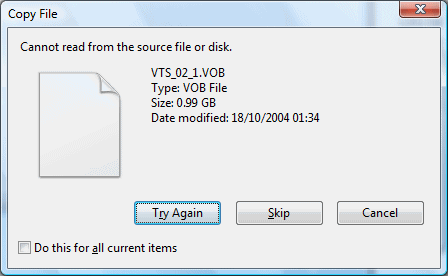
It was then I realised the problem wasn’t with the aforementioned programs but with Vista itself. There were two 1 GB VOB files and the first of these refused to be copied. Vista was throwing up an error which advised me it “Cannot read from the source file or disk”. Bugger. Thinking it might be a problem with either Vista or the DVD drive I tried it in my trusty laptop (still running Windows XP Pro). It worked!

So how do I know Vista’s the problem? Well I tried to copy the file over my network back to the Vista PC and got a similar looking error dialogue, this time saying “Network Error: There is a problem accessing \\laptop\directory. Make sure you are connected to the network and try again.”

By this stage I gave up and just downloaded DVDx to my laptop, which I was able to use to copy the video to an Xvid AVI file.  Nice work Micro$oft.  Now all I have to do is successfully convert it to NTSC format and I’m flying – unfortunately that’s as much fun as pulling teeth, and much more painful.

Solved: Dashboard 404s After WordPress 2.2 Upgrade

Immediately after I upgraded (using Fantastico) from WordPress 2.1.x to 2.2.1 I noticed the Dashboard in the admin was giving me problems. I was getting 404 pages displaying in the middle of the page (even though the source code was fine and there actually aren’t any iframes there). I’ll get to the solution in a minute (so read on) but first I want to tell my story (just because I can).

Initially I thought this was because there had been a problem writing some of the files so I downloaded a clean copy of wordpress and uploaded the files manually over FTP. This didn’t help. Having eliminated browser problems by testing in IE as well as FireFox, I noticed that the page seemed to be loading fine and these 404s were appearing after the page loaded. Guessing Javascript I disabled this feature and tried again. It worked!

It was about this time that I stumbled across some information in the WordPress support forums pointing to a AJAX issue. It seems to be something to do with displaying the dynamic information like notices from WordPress (and incoming links?) and, more specifically, with the Content-type HTTP header being returned having a newly-added character encoding field.

Continue reading “Solved: Dashboard 404s After WordPress 2.2 Upgrade”

nerd. links – Flash is Evil

I’m graduating on Wednesday and have been looking about town (Belfast) for somewhere to have a meal afterwards to celebrate with the family. I’ve been round a few places (Yum looks like the favourite at the moment) and now Bourbon has been suggested. “Good idea!” I thought. I’ll just check their menu on their web site.

Unfortunately that’s easier said than done. It’s all fine until you hit the back button to go back from the Set Menu to the A la Carte one. You see the site is a wholesale abuse of Flash and it reminded me of an 8 year old article called Flash is Evil. The article may be getting on a bit, but every word’s as true now as it was then.

Flash has it’s uses and designing entire web sites (particularly web site navigation) is not one of them.

Stop Monitor.exe Hogging CPU

I recently noticed that my CPU fan on my Acer Aspire 5002 WLMi notebook was running at full speed much more than it normally should and the system itself was running more slowly than usual. When I opened task manager I was finding a process called Monitor.exe was hogging anything up to 99% of the CPU. I terminated the process and that solved everything – usually until I rebooted.

But what to stop this happening again?

It turns out that monitor.exe was related to Acer eRecovery – a tool that helps recover your laptop from a major crash. However after a bit of googling I found out that it needs the D: partition that comes with the laptop (apparently it needs to be in FAT32 as well, but I don’t think this is true because mine had been NTFS for months and I hadn’t noticed any problems).

The problem seemingly arises because I recently reformatted the D partition into a few ext3 and other partitions for installing Linux (Ubuntu to be precise). Since Windows can’t read Linux filesystems, eRecovery can no longer find the D: partition which it, for some reason, seems to need.

Simple solution? Well I disabled Monitor.exe using Start -> Run -> msconfig and disabling Monitor.exe, which was listed at the bottom of the list under the Startup tab.

nerd. links – Make Thunderbird Quote Headers in Replies

Inspired by Tech Chick (aka Gabrielle Atticus), I’ve decided to start listing some interesting if well-hidden sites on the internet so this will be the first in a series of nerd. links.

This one resolves a long-standing issue with Mozilla’s Thunderbird email client, ie the way it forwards messages.  Whereas Outlook, Outlook Express etc. forward some headers (to, from, subject, date etc) all you ever get in Thunderbird is “Sendername said:”.  It’s pretty pathetic really, especially the fact that there’s no date.

Luckily someone has made an add-on with the descriptive but not exactly ‘roll-off-the-tongue’ name “Change quote and reply format” to fix this problem. Now the quote header is much more useful:

—- Original message —–
From: sender@provider.com
To: recipient@provider.com
Subject: something
Date: 01/01/2005

Unfortunately it doesn’t seem to be listed at Mozilla’s plugin site, so I only stumbled on it after googling a bit and reading a few forum pages.  The home page (linked above) isn’t very well designed, but there’s a more user-friendly description of the plugin at The Extensions Mirror.

Continue reading “nerd. links – Make Thunderbird Quote Headers in Replies”

Vista Update

Following my earlier rant about the trial that is installing Vista with a Netgear wireless card, I thought I’d offer an update on that story.

Firstly, my new Linksys (WMP54G v4.1) wireless card is working fine. Thanks Amazon.

Secondly, I updated the Windows Experience Index score just now. Still the same graphics card in the machine, so I don’t know how but suddenly my desktop graphics rating jumped from showing 2.1 to 4.1, pretty sweet! On viewing the details I also noticed that the graphics card apparently has 334MB of system memory available on top of the 256MB of dedicated RAM. I don’t know if this was the case before or not so can’t say if that influenced the change in score.

Anyway, this brings my overall Windows Experience Index up from 2.1 to 3.0, now based on the Gaming Graphics score (WEI bases your overall experience rating on the lowest score it finds). My system now looks like:

Processor (AMD Athlon 2800+): 3.4
RAM (1.5GB @ 266MHz): 3.7
Graphics (256MB eForce 6200): 4.1
Gaming Graphics: 3.0
Primary Hard Disk (Seagate 120GB 7200rpm): 4.4

Now if anyone can tell me of a Protowall/PeerGuardian substitute that works with Vista I’ll be sorted.

Server application unavailable: installing IIS on .NET 2.0

I feel so dirty, but for a project I’m working on at the moment I have to use ASP.NET instead of PHP; “why?” is a question for another day. Anyway, I’ve installed IIS before so that wasn’t a big problem… or so I thought.

I already had the .NET 2.0 framework on my XP machine so went straight to installing IIS (5.1 comes with XP Pro). It installed easily enough and my hello world html file was served without any major problems (actually that’s not true, before I copied my own files across I tried to check the IIS default pages served ok only to discover, through more googling, that if I used IE instead of Firefox that annoying box asking me for a password would go away).

Now my ASP.NET issue. I got a Server application unavailable error message in big red letters when I tried to run any .aspx (ASP.NET) scripts and couldn’ t figure ou t for the life of me why. The Event Viewer, where IIS errors are logged, gave little more by way of help: Failed to initialize the AppDomain:/LM/W3SVC/1/ROOT

Err… What?! I worked out that it wasn’t affecting html pages, just ASP ones – and only .aspx ones at that, suggesting it was .NET-related.

As it turns out the problem was that I had installed .NET before IIS. It’s easy enough to fix, but it took 20 solid minutes of googling to find the solution in a Microsoft community newsgroup (and then realise that I’d have found it already if I’d just read to the bottom of a 4 year old forum post I’d already found).

Anyway, what you need to do if you’re getting this “Server application unavailable” message is navigate to your .NET directory (something like C:\WINDOWS\Microsoft.NET\Framework\v2.0.50727) in a command prompt and run the command aspnet_regiis.exe -i which will register ASP.NET with IIS. If that still doesn’t work, there’s always PHP.net 😉

Making Firefox Scroll With Synaptics TouchPad

Even though, as a web designer, I hate Internet Explorer I’ve been using it regularly on my laptop more or less since I got it. The reason for this sad state of affairs was that Firefox wouldn’t recognise the scroll buttons on the Synaptics TouchPad and so I’d have to scroll using the cursor keys or the scroll bar on the right. This situation finally became untenable this morning though – I had two instances of Microsoft’s Visual Web Developer open and the machine seemed frustratingly slow to respond. A quick duke at Task Manager confirmed that this was because lots of memory was being used.

The Visual Web Developer program uses a lot of memory but I was surprised to find that Internet Explorer was actually using more at about 60MB. Firefox, also running at the time, was only using about 20MB so I decided it was time to fix the scrolling problem. I googled a bit and came across reports of people testifying that they solved the problem by downloading the newest drivers from Synaptics’ web site. This didn’t work for me though. Then I came across this forum post at Mozillazine which talked about changing a setting for the scroll buttons from “scroll selected item” to “scroll item beneath pointer”. Unfortunately this didn’t work for me either.

Here’s what did (after installing those new drivers):

  1. Double-click the touchpad icon in the system tray
  2. Ensure the correct device is selected in the Device Settings tab and click the Settings button
  3. Open the Buttons list and click ‘Scroll Up Button Action’
  4. Choose “Scroll the current window up” from the list.
  5. Click the ‘Scroll Down Button Action’ and choose ‘Scroll the current window down’ from the list.
  6. Apply/OK out.

Voila! Firefox now scrolls. I later discovered that someone else had replied to the above Mozillazine forum post advising just that, but I assure you I discovered it myself quite by accident.

Anyway, during the course of this fiddling I also discovered that you can use the right hand edge of your touch pad for scrolling. Just move your finger up or down the far right edge of your touch pad and the window scrolls. Unlike the scroll buttons, this did work in Firefox regardless of the above setting (though according to this KnowledgeBase entry, it may require the newest drivers), so if you’re having problems with Firefox scrolling with a Synaptics touchpad device, you should now have two solutions. Enjoy!